Day 5 Linux Shell Scripting

Today Task
- You have to do the same using Shell Script i.e using either Loops or command with start day and end day variables using arguments -
So Write a bash script create directories.sh that when the script is executed with three given arguments (one is the directory name and second is start number of directories and third is the end number of directories ) it creates a specified number of directories with a dynamic directory name.
Certainly! Here's a simple Bash script named create_directories.sh that takes three arguments: directory name, start number, and end number. It then creates directories with dynamic names based on the given range.
#!/bin/bash

# Check if three arguments are provided
if [ "$#" -ne 3 ]; then
    echo "Usage: $0 <directory_name> <start_number> <end_number>"
    exit 1
fi

directory_name=$1
start_number=$2
end_number=$3

# Check if start_number is less than or equal to end_number
if [ "$start_number" -gt "$end_number" ]; then
    echo "Error: Start number should be less than or equal to end number."
    exit 1
fi

# Loop to create directories
for ((i = start_number; i <= end_number; i++)); do
    dir_name="${directory_name}_${i}"
    mkdir -p "$dir_name"
    echo "Directory created: $dir_name"
done

echo "Directories creation completed."
Save the above code in a file, for example, create_directories.sh. Make it executable using the following command:
chmod +x create_directories.sh
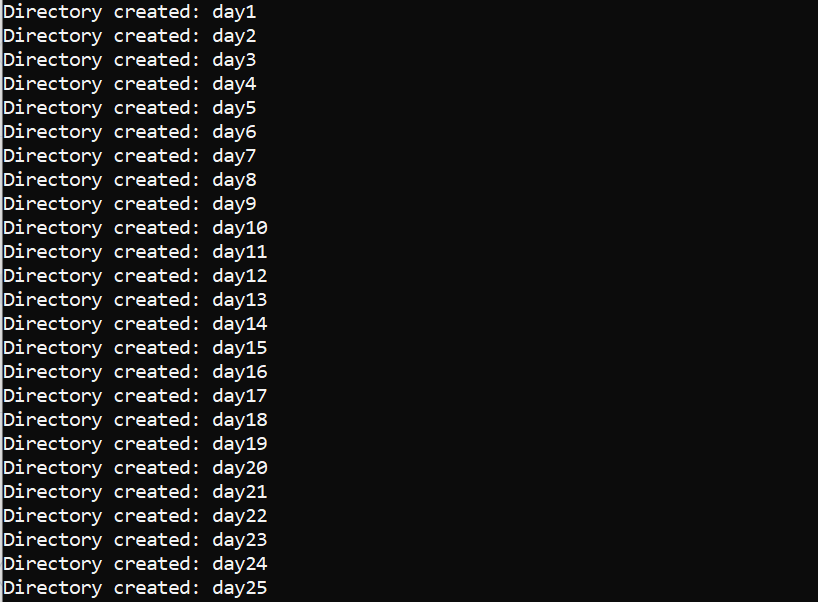
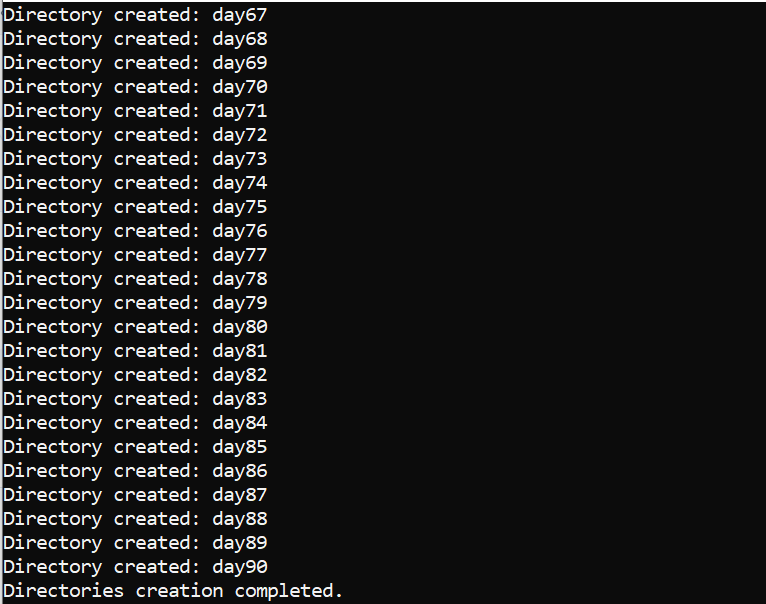
Example : When the script is executed as
./createDirectories.sh day 1 90
then it creates 90 directories as day1 day2 day3 .... day90
Create a Script to backup all your work done till now
simple script named
backup_work.shthat creates a backup of your work. It assumes you want to back up all files in the current directory and its subdirectories. The backup is created in a timestamped directory.#!/bin/bash # Get the current date and time timestamp=$(date +"%Y%m%d_%H%M%S") # Create a backup directory with the timestamp backup_dir="backup_$timestamp" mkdir "$backup_dir" || { echo "Error creating backup directory"; exit 1; } # Copy all files (excluding the backup directory itself) to the backup directory cp -r !(backup_*) "$backup_dir" || { echo "Error copying files to backup directory"; exit 1; } echo "Backup completed. Your work is backed up in: $backup_dir"Save the above code in a file, for example,
backup_work.sh. Make it executable using the following command:chmod +x backup_work.shYou can then run the script by executing:
./backup_work.shThis will create a backup directory with a timestamp, copy all files (excluding the backup directory itself) into that directory, and notify you about the completion of the backup.
Cron and Crontab, to automate the backup Script
Cron:
Definition:
cronis a time-based job scheduler in Unix-like operating systems. It allows users to schedule repetitive tasks, such as running commands or scripts, at specified intervals or times.Functionality: The
crondaemon runs in the background and reads a configuration file called thecrontab. It checks thecrontabfile regularly to see if there are any scheduled tasks that need to be executed.Usage: Users can schedule tasks to run at specific times, on specific days, or at regular intervals using the
cronsystem. It is commonly used for automating repetitive tasks, backups, maintenance, and other periodic operations.
Crontab:
Definition:
crontabis a command-line utility that allows users to create, edit, install, and uninstall theircronjobs. The term "crontab" is derived from "cron table," indicating a table of scheduled tasks.Usage: Users can use the
crontabcommand to interact with their individual cron tables. Each user typically has their owncrontabfile that contains scheduled tasks specific to their needs.Syntax: The
crontabfile follows a specific syntax where users define the timing and the command to be executed. The syntax consists of five fields representing minute, hour, day of the month, month, and day of the week, respectively.


